How to fix mobile connector not charging (GFCI trip) Tesla
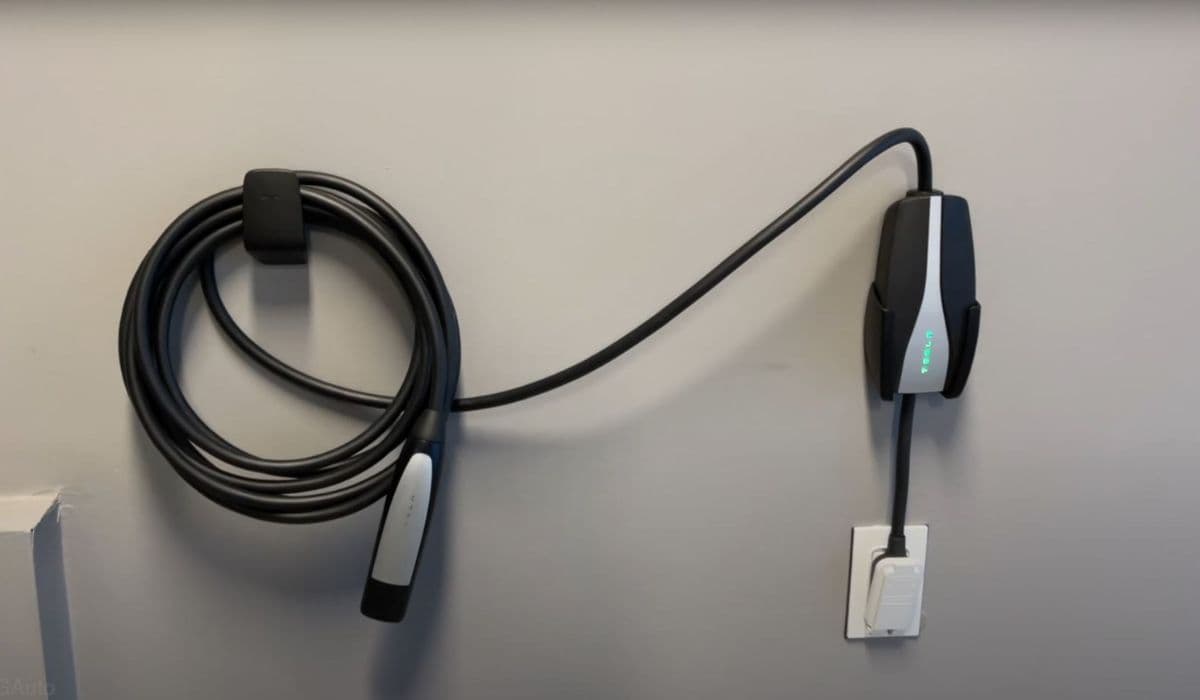
Tesla owners often encounter a frustrating issue where the Mobile Connector fails to charge the vehicle, displaying an error about a GFCI trip. This ground fault circuit interrupter safety feature detects potential electrical leaks and halts charging to prevent hazards. The Mobile Connector includes its own built-in GFCI protection, which can sometimes trigger unexpectedly, leaving drivers stranded with a partially charged battery.
Understanding this problem involves recognizing that GFCI trips aren't always indicative of a dangerous fault. Modern electric vehicle chargers like Tesla's perform self-tests, including ground integrity checks, that can mimic a fault to sensitive external protections. This interplay between the charger's internal safeguards and home electrical systems creates one of the most common charging interruptions reported by Tesla owners.
Understanding the GFCI Trip Error
The error message typically reads something like "Mobile Connector GFCI tripped" on the vehicle's touchscreen or app. This means the interrupter inside the Mobile Connector has activated, stopping power flow.
The Mobile Connector's GFCI monitors for imbalances in current between hot and neutral wires.
Even tiny discrepancies, as low as a few milliamps, trigger a shutdown.
Unlike traditional outlets, EV chargers conduct pre-charge diagnostics, including intentional small ground leaks to verify proper earthing.
These tests ensure safety but can confuse external GFCI devices or cause the internal one to trip if conditions aren't perfect. Factors like temperature fluctuations, minor wiring variations, or accumulated wear play significant roles in why this happens intermittently for some users while remaining rare for others.
Common Causes of GFCI Trips with Tesla Mobile Connector
Several underlying issues can lead to repeated GFCI trips. Identifying the root cause requires systematic checking, as the problem might stem from the charger, outlet, or environmental conditions.
Moisture or environmental exposure → Water ingress from rain, humidity, or condensation affects connections and triggers faults.
Worn or aging components → Outlets and breakers degrade over time, becoming overly sensitive to normal EV charger operations.
Compatibility conflicts → Plugging into a GFCI-protected outlet creates dual protection layers that interfere with each other during ground tests.
Overheating during sessions → Prolonged charging raises temperatures in adapters or cords, prompting protective shutdowns.
Faulty hardware → Internal issues in the Mobile Connector unit or its adapters develop after extended use.
Real-world experiences show that trips often occur right at startup, during the diagnostic phase, rather than mid-charge, pointing to test-related triggers rather than actual leaks.
Initial Troubleshooting Steps
Start with simple, no-tool checks to resolve many GFCI trips quickly.
Unplug the Mobile Connector from both the wall and the vehicle, wait a few minutes, then reconnect firmly.
Inspect all connections for dirt, corrosion, or damage—clean gently if needed and ensure everything is dry.
Try reducing the charging amperage in the vehicle's settings to lower thermal stress.
Test the setup on a different outlet, preferably non-GFCI protected, to isolate if the issue follows the charger or stays with the original socket.
These steps often restore charging temporarily and help diagnose whether the problem is outlet-specific or charger-related.
Testing Different Outlets and Adapters
One of the most effective diagnostic methods involves experimentation with alternative power sources.
Plug into a known good, non-GFCI outlet elsewhere in the home or at a friend's place.
If using a 240V adapter like NEMA 14-50, switch to a 120V setup temporarily to see if higher voltage contributes.
Borrow another Tesla Mobile Connector if possible to compare behavior.
When the trip occurs only on specific outlets, it frequently indicates interference from external GFCI protection or poor grounding at that location. Conversely, if the error persists across multiple tested outlets, attention turns to the Mobile Connector itself.
When to Consider Electrical Upgrades
For persistent issues tied to home wiring, targeted improvements can provide reliable long-term charging.
Replace aging GFCI outlets with heavy-duty, industrial-grade versions designed for higher loads.
Ensure the circuit is dedicated solely to charging, avoiding shared loads that introduce instability.
In cases requiring code compliance for outdoor or garage installations, consult professionals about optimal breaker types that minimize nuisance trips.
Many owners find that upgrading to a hardwired charging solution eliminates Mobile Connector quirks entirely, offering faster and more consistent performance.
Advanced Diagnostics and Professional Help
If basic troubleshooting doesn't resolve the trips, deeper investigation becomes necessary.
Monitor the Mobile Connector's status lights for specific patterns indicating faults.
Use the Tesla app to check for detailed error codes beyond the basic GFCI message.
Schedule a service appointment through the app—Tesla technicians can test the unit and replace it if faulty components are detected.
Owners report that intermittent trips sometimes worsen over time, signaling developing hardware degradation. Early intervention prevents complete failure during critical moments, like before a long drive.
Preventive Measures for Reliable Charging
Proactive habits significantly reduce GFCI trip occurrences and extend equipment life.
Store the Mobile Connector properly when not in use, avoiding kinks or exposure to extremes.
Regularly inspect cables and plugs for wear, replacing adapters as needed.
Keep connections clean and dry, especially in damp garages or outdoor setups.
Consider seasonal adjustments, like lowering amps in hot weather to manage heat buildup.
By treating the Mobile Connector as precision equipment rather than a simple cord, owners enjoy fewer interruptions and smoother daily charging routines.