
Nissan Altima infotainment system glitches and freezing
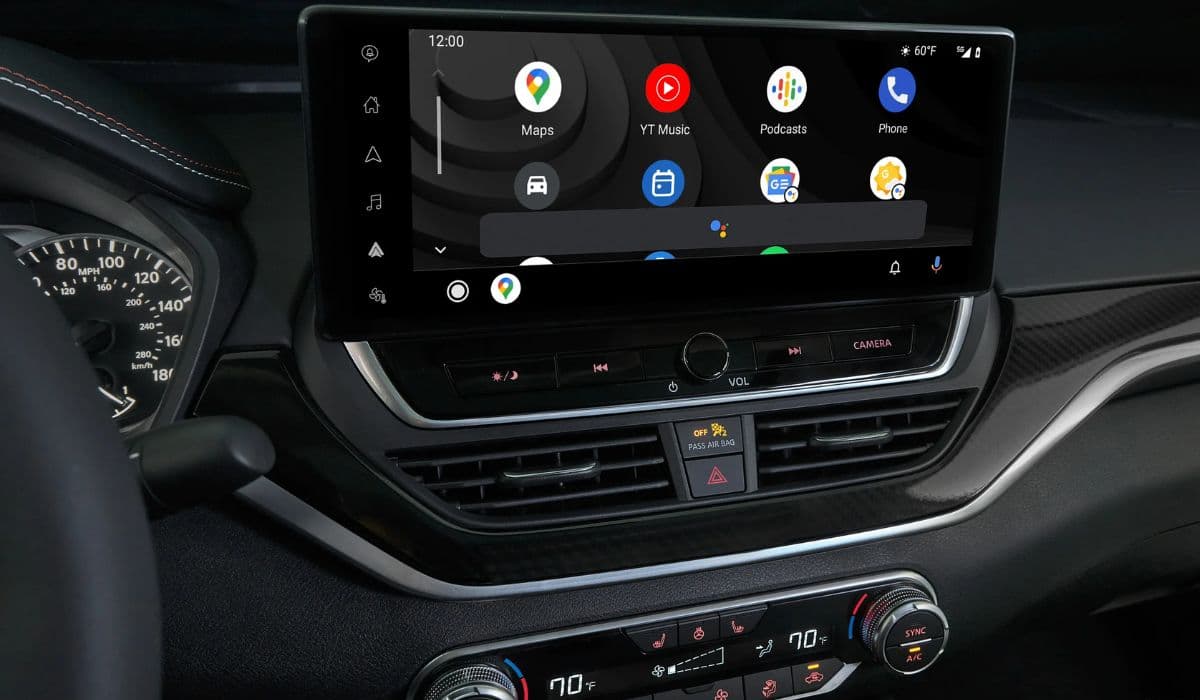
Modern midsize sedans like the Nissan Altima rely heavily on their infotainment systems to deliver seamless connectivity, navigation, and entertainment. When the screen freezes, goes black, or becomes completely unresponsive, the driving experience can quickly turn from enjoyable to irritating. These glitches affect many Altima owners, creating moments of confusion at stoplights or during long highway stretches.
Why the Infotainment System Freezes More Often Than Expected
The NissanConnect-powered system in the Altima is essentially a small computer on wheels, managing multiple tasks simultaneously: Bluetooth streaming, smartphone mirroring, climate controls, and sometimes navigation. When the processor gets overloaded or encounters conflicting commands, freezing becomes almost inevitable.
Several factors contribute to this vulnerability:
Sudden voltage drops during engine start/stop cycles
Memory leaks after prolonged use of Apple CarPlay or Android Auto
Background processes conflicting with newly paired devices
Software bugs that accumulate over weeks of driving
Unlike a smartphone that you can restart anytime, the car's system stays powered in various states, making glitches feel more persistent.
Most Common Symptoms Altima Drivers Report
Owners frequently describe similar patterns when the infotainment starts misbehaving:
The screen freezes mid-navigation, with audio still playing normally
Random black screens appear after startup, sometimes with the Nissan logo stuck
Touch controls become unresponsive while physical buttons work partially
The system reboots itself repeatedly every few minutes
Apple CarPlay or Android Auto disconnects constantly or fails to launch
Delayed response to volume changes or source switching
These symptoms rarely occur in isolation — one glitch often triggers a cascade of others.
Real-World Scenarios That Trigger Freezing
Certain situations dramatically increase the likelihood of a freeze:
Connecting a new phone while the engine is running
Switching rapidly between radio, Bluetooth, and USB sources
Using wireless charging pads that generate extra heat near the unit
Driving in extremely hot or cold weather (the screen reacts poorly to temperature swings)
Leaving multiple apps open in the background for hours
Many drivers notice the problem worsens after a long trip when the system has been active continuously.
Step-by-Step Troubleshooting That Actually Works
Most owners can resolve temporary glitches without visiting a service center. Try these methods in order of simplicity:
Quick soft reset — Press and hold the power/volume knob for 10-15 seconds until the screen goes black and restarts. This clears temporary memory without losing settings.
Full vehicle restart — Turn off the engine, open and close the driver's door, wait 2-3 minutes, then restart. This discharges residual power and often refreshes the entire system.
Check for pending updates — When the screen becomes responsive, navigate to Settings → System Information → Software Update. Many freezes disappear after installing the latest firmware.
Unpair and re-pair devices — Delete all Bluetooth and smartphone connections, then add them fresh. Old cached data frequently causes conflicts.
Clean the screen and edges — Fingerprints and dust can confuse the capacitive touch layer, leading to perceived unresponsiveness.
These steps fix the majority of one-time or occasional freezes.
When the Problem Becomes Chronic
If the system freezes multiple times per week despite resets, deeper issues may be involved:
Faulty internal memory modules that struggle with multitasking
Overheating of the head unit caused by poor ventilation behind the dash
Intermittent power supply problems from wiring or fuses
Software incompatibility after an incomplete update
In such cases, the glitches evolve — starting as occasional annoyances and progressing to daily reboots or complete black screens.
Prevention Strategies for Long-Term Stability
Proactive habits can dramatically reduce the frequency of freezes:
Perform a soft reset every 2-3 weeks as routine maintenance
Avoid connecting phones during engine start-up
Use high-quality, short USB cables certified for data transfer
Keep the number of paired devices minimal (ideally 2-3 maximum)
Park in shaded areas during hot weather to reduce interior temperatures
Check for software updates every few months, even if no issues appear
These small routines treat the infotainment system like the sensitive electronics it truly is.
The Psychological Impact of an Unreliable Screen
Beyond inconvenience, constant glitches create subtle stress. Drivers begin to distrust the system, leading to manual radio tuning, paper maps, or even avoiding smartphone integration altogether. What should enhance the drive instead becomes a source of frustration, highlighting how deeply integrated technology has become in daily commuting.
Final Thoughts on Living with Altima Tech
While the Nissan Altima's infotainment system offers impressive features when functioning smoothly, its occasional instability remains a notable characteristic. Understanding the root causes, mastering quick resets, and adopting preventive habits allows most owners to minimize disruptions and reclaim the convenience the system was designed to provide.
More from Nissan
Nissan Sentra CVT jerkiness and premature failure reports
16.01.2026 09:33
Nissan Sentra budget-friendly compact with solid fuel economy
15.01.2026 17:31
Interior quality and outdated tech complaints Nissan Frontier
15.01.2026 15:26
Nissan Frontier reliable V6 engine for truck duties
15.01.2026 13:17
Nissan Frontier vibration at idle and engine roughness
15.01.2026 09:15