How to fix FSD visualization lag after Tesla 2025.14 update
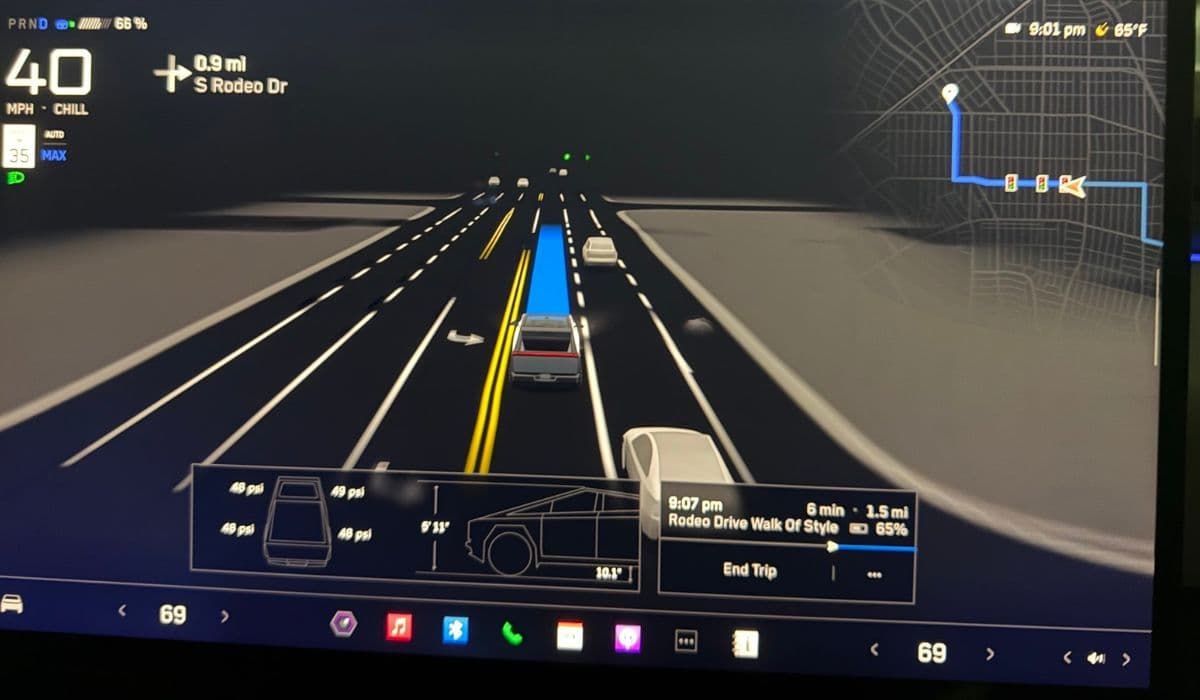
Tesla owners have embraced the advanced capabilities of Full Self-Driving (FSD) Supervised, but software updates sometimes introduce unexpected challenges. The 2025.14 update enhanced several Autopilot features, including better lane departure assistance and improved camera integrations. However, many users reported noticeable lag in the FSD visualization display — where rendered vehicles, pedestrians, and road elements appear delayed or stuttery compared to real-time driving conditions.
This lag can make monitoring FSD feel less intuitive, as the on-screen representation trails behind actual surroundings. Fortunately, most cases stem from temporary processing adjustments or minor system overloads rather than hardware faults. With a few targeted steps, owners can often restore smooth, responsive visualizations.
Understanding the Causes of Visualization Lag
The FSD visualization relies on heavy neural network processing to render a detailed 3D environment from camera feeds. After major updates like 2025.14, the system recalibrates to incorporate new algorithms, which can temporarily strain onboard computing resources.
Common triggers include:
Increased data load from enhanced object detection models.
Background indexing of new driving data collected during FSD sessions.
Conflicts with recently added features, such as expanded lane assist overlays.
Cache buildup in the infotainment system affecting render performance.
Older hardware configurations may experience more pronounced effects initially, but Tesla's over-the-air optimizations typically address broader patterns in subsequent patches.
Quick Fixes to Try First
Start with these non-invasive steps, as they resolve the majority of post-update lag reports.
Perform a soft reboot: Press and hold both scroll wheels on the steering yoke or wheel until the touchscreen resets. This clears temporary memory glitches without erasing settings.
Disable and re-enable FSD: Navigate to Controls > Autopilot, toggle Full Self-Driving off, then back on. This forces a fresh initialization of the visualization pipeline.
Switch visualization modes briefly: While in Park, tap the Autopilot icon to cycle between standard and full-screen FSD views, helping refresh the rendering engine.
Many owners notice immediate improvement after these actions, as they prompt the system to reprioritize real-time rendering.
Advanced Troubleshooting Steps
If basic resets don't suffice, delve deeper into system maintenance.
Clear camera obstructions and recalibrate: Ensure all cameras are clean, then drive on a well-marked highway to trigger automatic calibration. Updates sometimes shift sensor parameters, leading to delayed processing until recalibration completes.
Check for pending sub-updates: Connect to Wi-Fi and monitor the Software menu. Point releases often follow major versions to fine-tune visualization performance.
Adjust display settings: Reduce screen brightness or disable unnecessary overlays (like energy graph) during FSD use to free up GPU resources for visualizations.
For persistent issues:
Enter Service Mode (hold the vehicle name in Controls > Software for 5-10 seconds) and review Autopilot diagnostics for any flagged rendering errors.
Report via voice command: Say "Bug Report: FSD visualization lag" while engaged — this sends detailed logs directly to Tesla engineers.
Optimizing Your Setup for Smoother Performance
Proactive habits can minimize lag recurrence as FSD evolves.
Park in cool environments after drives: Excessive cabin heat can throttle processing power, amplifying render delays.
Limit concurrent apps: Avoid streaming high-bitrate media or running multiple games while using FSD, preserving bandwidth for visualizations.
Engage FSD regularly: Consistent usage helps the neural planner adapt faster to update changes, smoothing out initial hiccups.
These practices not only address current lag but enhance overall FSD responsiveness.
When to Expect Official Resolutions
Tesla actively monitors fleet data post-update. Visualization refinements often appear in follow-up releases, prioritizing user feedback on render fluidity. Community forums buzz with shared experiences, confirming that patience combined with the steps above bridges the gap until broader fixes deploy.
By methodically applying these solutions, most drivers regain crisp, real-time FSD visualizations quickly. The system's end-to-end learning continues to advance, turning temporary growing pains into stepping stones for even more immersive autonomy.