
Ford Maverick: Sync 4 Infotainment Freeze Troubleshooting Tips
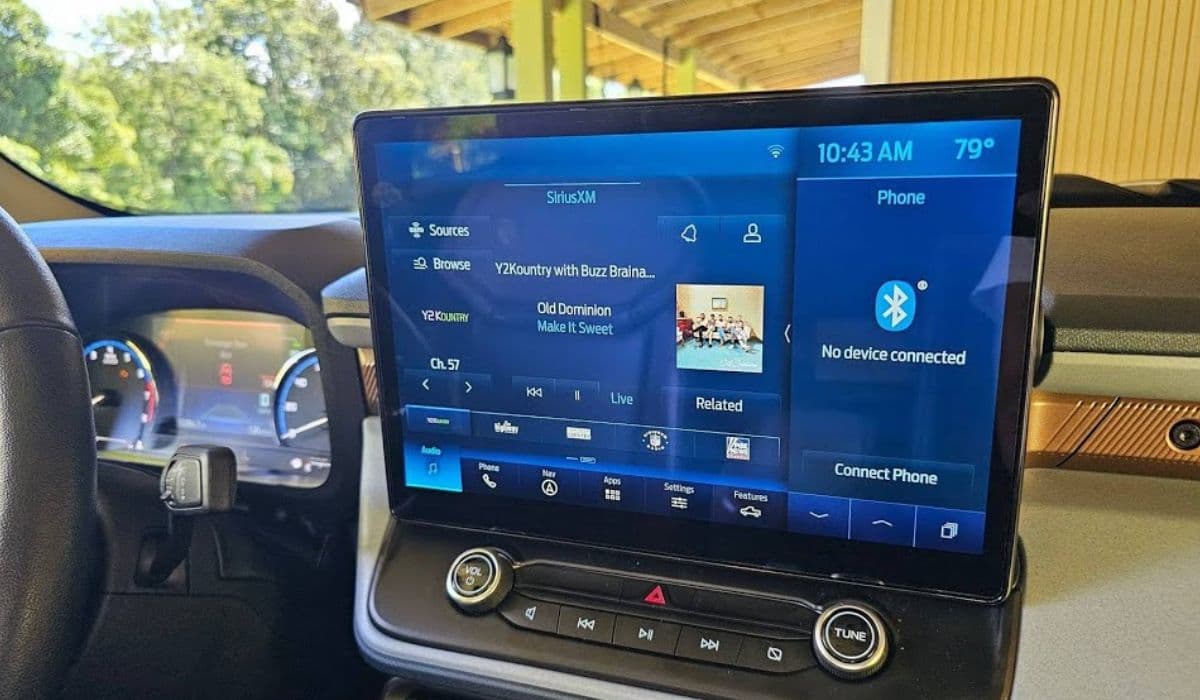
The Ford Maverick stands out as a versatile compact truck, blending efficiency with modern tech features. At the heart of its cabin experience is the Sync 4 infotainment system, a sophisticated platform designed to integrate navigation, entertainment, and vehicle controls seamlessly. This system powers an intuitive touchscreen interface, supporting voice commands, wireless connectivity for smartphones, and real-time app integrations. However, like any advanced digital setup, it can encounter glitches, with screen freezes being one of the most frustrating issues for drivers.
What makes Sync 4 special in the Maverick is its ability to adapt to daily driving needs, from streaming music during commutes to providing hands-free calls on rugged trails. Freezes often disrupt this flow, turning a helpful tool into a momentary headache. These interruptions might stem from software overloads or hardware hiccups, but the good news is that many can be resolved without heading to a service center. By diving into the system's architecture, owners can appreciate how interconnected components—like the processor, memory, and external devices—play a role in maintaining smooth operation.
Imagine cruising down a scenic route, only for the screen to lock up mid-song change. Such scenarios highlight the importance of proactive maintenance. Sync 4's modular design allows for user-friendly diagnostics, empowering Maverick enthusiasts to tackle problems head-on.
Common Causes of Infotainment Freezes
Identifying the root of a Sync 4 freeze in your Ford Maverick is the first step toward a fix. These issues aren't random; they often arise from specific triggers that build up over time.
Overloaded system resources: Running multiple apps simultaneously, such as navigation alongside music streaming, can strain the processor, leading to temporary halts.
Outdated software: Firmware that's not up to date may contain bugs that manifest as freezes, especially after prolonged use.
Connectivity conflicts: Bluetooth or Wi-Fi pairings with incompatible devices can cause interference, disrupting the infotainment flow.
Environmental factors: Extreme temperatures, whether scorching heat or freezing cold, might affect the touchscreen's responsiveness.
Hardware wear: Accumulated dust or minor electrical glitches in the wiring could intermittently pause the system.
Drivers often notice patterns, like freezes occurring more frequently during heavy traffic when relying on real-time updates. Understanding these causes transforms troubleshooting from guesswork into a strategic process, keeping your Maverick's cabin tech reliable for adventures ahead.
Basic Troubleshooting Steps
Start with simple actions to thaw out a frozen Sync 4 screen in your Ford Maverick. These methods require no tools and can often restore functionality in minutes, making them ideal for on-the-go fixes.
Power cycle the system: Turn off the engine, wait 30 seconds, and restart. This clears temporary memory caches that might be causing the lockup.
Disconnect accessories: Unplug any USB devices or chargers connected to the infotainment ports, as faulty peripherals can trigger conflicts.
Check for overheating: Ensure vents around the dashboard are unobstructed; sometimes, built-up heat from direct sunlight exacerbates freezes.
Toggle airplane mode: If connected to a phone, enable and disable airplane mode on your device to reset wireless links.
Perform a soft reset: Hold down the power button on the infotainment unit for 10 seconds until it reboots, mimicking a fresh start.
These steps are like hitting the refresh button on your browser—quick and effective for minor glitches. Many Maverick owners report that regular implementation prevents escalations, turning potential frustrations into minor pauses.
Advanced Reset Techniques
When basic fixes fall short, escalate to more thorough resets for your Ford Maverick's Sync 4 system. These approaches delve deeper into the software layers, addressing persistent freezes without voiding any protections.
Master reset via settings: Navigate to the system's menu, select "General," then "Reset," and choose the factory reset option. This wipes custom settings but preserves core data.
Fuse box intervention: Locate the fuse panel under the dashboard, pull the infotainment-related fuse (usually labeled), wait a minute, and reinsert it to force a hard reboot.
Battery disconnection: For a full electrical purge, disconnect the vehicle's battery negative terminal for 15 minutes, allowing all capacitors to discharge.
Diagnostic mode entry: Press and hold the seek forward and power buttons simultaneously to access hidden menus for error code checks.
App-specific troubleshooting: Isolate freezes by closing individual apps through the task manager interface, pinpointing problematic software.
Engaging these techniques feels like being a tech detective in your own truck. Maverick enthusiasts often share stories of reviving seemingly dead systems through such resets, extending the life of their infotainment setup.
Software Update Solutions
Keeping your Ford Maverick's Sync 4 software current is a proactive shield against freezes. Updates patch vulnerabilities and optimize performance, turning potential issues into non-events.
Over-the-air downloads: Enable automatic updates in the settings to receive fixes wirelessly, often during low-usage periods like overnight parking.
Manual USB installation: Download the latest version from official channels onto a formatted USB drive, insert it into the vehicle, and follow on-screen prompts.
Wi-Fi hotspot utilization: Connect to a stable network via your phone's hotspot for larger updates, ensuring a smooth transfer without interruptions.
Version compatibility checks: Before updating, verify your Maverick's model year aligns with the release notes to avoid compatibility snags.
Post-update verification: After installation, run a system diagnostic to confirm the update resolved any lingering freeze patterns.
Regular updates not only fix freezes but also unlock new features, like enhanced voice recognition. For Maverick drivers who value cutting-edge tech, this maintenance routine keeps the infotainment evolving with their lifestyle.
When to Seek Professional Help
If freezes persist despite your efforts, it might signal deeper issues in your Ford Maverick's Sync 4 system. Recognizing when to involve experts ensures long-term reliability.
Recurring patterns post-resets: If the screen locks up in the same scenarios repeatedly, it could indicate hardware faults needing specialized tools.
Accompanying error messages: Persistent codes or warnings on reboot suggest underlying electrical or module problems.
Integration failures: When connected features like Apple CarPlay or Android Auto consistently fail, professional calibration might be required.
Physical symptoms: Noticeable delays in touchscreen response or unusual sounds from the unit warrant a tech inspection.
Warranty considerations: Early intervention can leverage coverage for repairs, preventing out-of-pocket surprises.
Turning to certified technicians transforms a stubborn problem into a learning opportunity. Many Maverick owners find that professional insights reveal overlooked maintenance tips, enhancing their overall driving experience.
More from Ford
Ford F-150: Active Grille Shutter Maintenance and Cleaning Guide
28.12.2025 11:29
Ford Maverick Hybrid: Battery Cooling Fan Cleaning Tips
28.12.2025 08:22
Ford EcoBoost: Preventing Cam Phaser Rattle with Regular Oil Changes
28.12.2025 05:53
Ford F-150: Oil Change Interval Guide for EcoBoost Engines
27.12.2025 17:14
Ford F-150: How to Perform Tire Rotation and Balance Every 5,000 Miles
27.12.2025 14:45