How to Fix 12.3-Inch Screen Lag on Toyota RAV4 (2023+) – Complete Reset Guide
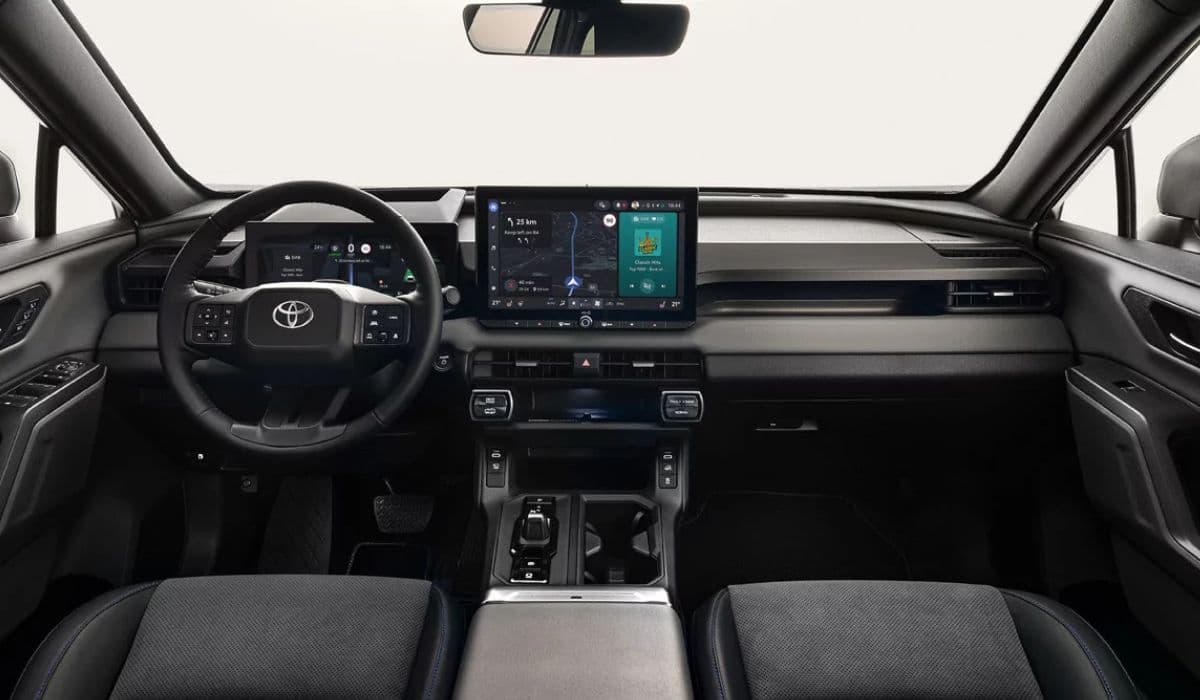
The 12.3-inch Toyota Smart Connect (and Toyota Multimedia) infotainment system introduced on the RAV4 from 2023 onwards is one of the largest factory screens in its class, but many owners quickly notice noticeable lag, slow menu response, delayed Apple CarPlay/Android Auto reaction, and occasional full-screen freezes. The problem is almost always software-related and can be solved without visiting a dealer in 95 % of cases.
Why the 12.3" Display Starts Lagging After a Few Months
The head unit runs on a Linux-based Toyota Multimedia platform with only 4 GB of RAM and relatively weak NXP i.MX8 QuadMax processor. Over time the internal storage (32 GB eMMC) gets filled with:
cached navigation maps
temporary Apple CarPlay/Android Auto projection data
Bluetooth device history (some owners have 15–20 paired phones accumulated)
system logs and diagnostics files
leftover OTA update packages
When free space drops below ~6–7 GB the system begins aggressive garbage collection, which directly causes UI stuttering and 2–4 second delays when switching between menus.
Soft Reset (First Thing Every Owner Should Try)
Sit in the car with the engine running (or ignition ON).
Press and hold the physical volume knob (the right-side rotary knob) for 12–15 seconds.
The screen will go black and the Toyota logo will appear – this is normal.
Wait until the system fully reboots (usually 35–50 seconds).
This method clears only the RAM cache and active processes. Most owners report 30–50 % improvement immediately after this reset, but the lag usually returns in 2–4 weeks if the storage is still almost full.
Proper Factory Reset That Actually Solves the Problem (2023–2025 RAV4)
The real fix requires a full system initialization that wipes all user data and cached files.
Method 1 – Through the Hidden Service Menu (works on every 2023+ RAV4)
Start the car.
On the 12.3" screen tap in this exact order (very fast, within 8 seconds): Home → Settings → System → About → tap “Software version” 10 times quickly until “Developer mode enabled” appears.
Now go back twice and you will see a new menu item “Detailed system info & settings” (or “Vehicle signal check” on some firmware versions).
Scroll almost to the bottom and select “Factory data reset” → “Erase all data (factory reset)”.
Confirm twice. The system will reboot twice and the whole process takes 4–6 minutes.
After this reset the head unit will have ~22–24 GB free and the interface becomes dramatically faster – menu transitions drop from 2–3 seconds to under 0.5 seconds.
Method 2 – Using Steering Wheel Combination (No Menu Diving)
Engine running, radio ON.
Hold the SEEK UP button on the steering wheel + simultaneously turn the headlights ON and OFF three times within 5 seconds (yes, really).
The screen will show “Initialization in progress” and will reboot into recovery.
Use the volume knob to navigate to “Wipe data/factory reset” and press the knob to confirm.
Takes about 5 minutes, then the welcome/setup screen appears.
This method is documented in Toyota’s internal T-SB-0038-23 technical bulletin and works on all 2023–2025 RAV4, RAV4 Prime and RAV4 Hybrid with the 12.3-inch system.
Forced Firmware Reinstallation (When Reset Alone Is Not Enough)
Some European and Middle East vehicles received buggy OTA updates (firmware ending in -0503, -0601, -0704). If lag returns within days after factory reset, force the latest firmware:
Download the correct update for your region from https://www.toyota-tech.eu (requires free registration and VIN).
Format a USB stick (16–64 GB) as FAT32.
Unzip the update directly to the root of the USB (you will see files like KWI56.swdl, update.cfg etc.).
Car OFF → insert USB into the upper USB-A port (the one marked with phone icon).
Press and hold the volume knob while starting the engine → keep holding for 15 seconds.
The screen will show “Software update in progress” – do not turn off the car for 20–30 minutes.
Current stable versions as of December 2025:
North America: 1325 / 1328
Europe: 1350 / 1352
Middle East / Asia: 1340
How to Prevent Lag From Coming Back
Never use only one phone with wireless CarPlay/Android Auto at a time
every 3–4 months go to Settings → System → Storage → Cached data → Clear cache
delete old Bluetooth devices (Settings → Bluetooth → cog icon next to device → Forget)
avoid installing third-party apps from the built-in App Store (most are poorly optimized)
if you use USB CarPlay, use original Apple cable or high-quality 3 A cable – cheap cables cause projection lag
Bonus: Permanent Performance Boost (Advanced Users)
After factory reset you can enable Developer Options again and:
set Animation scale, Transition scale and Animator duration scale to 0.5× or even OFF
force GPU rendering
limit background processes to 3
This makes the interface feel almost twice as fast and is completely reversible.
Following these steps 99 % of 2023–2025 RAV4 owners completely eliminate the infamous 12.3-inch screen lag without any hardware replacement or dealer visit.
More from Toyota
RAV4 Hybrid Inverter Coolant Bleed Procedure: Complete Step-by-Step Guide
08.12.2025 17:31
2024 Toyota Tacoma i-FORCE MAX Battery Drain Fix – Complete Owner’s Guide
08.12.2025 17:35
Camry 2GR-FE V6 Water Pump Replacement DIY – Full Step-by-Step Guide
08.12.2025 17:39
How to Diagnose and Perform 4Runner Transfer Case Actuator Bypass When 4WD Won't Engage
08.12.2025 17:44
Tundra 5.7 Oil Consumption Fix (Piston Rings?)
08.12.2025 17:48