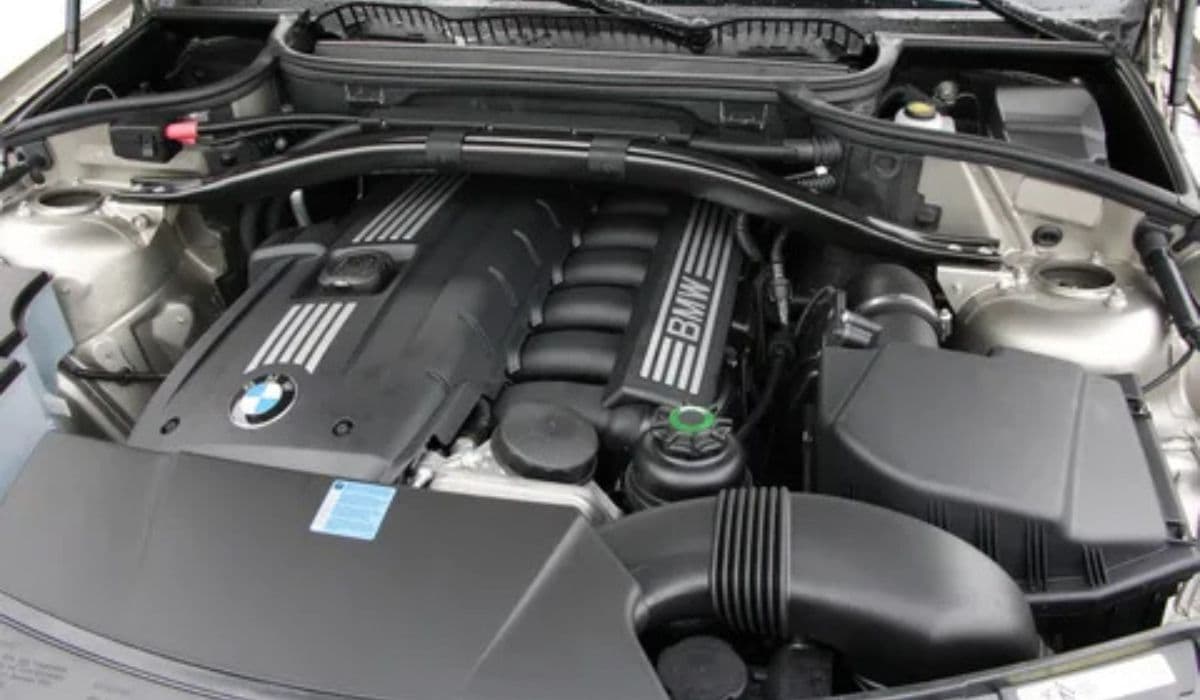
How to fix infotainment curved display glitches BMW
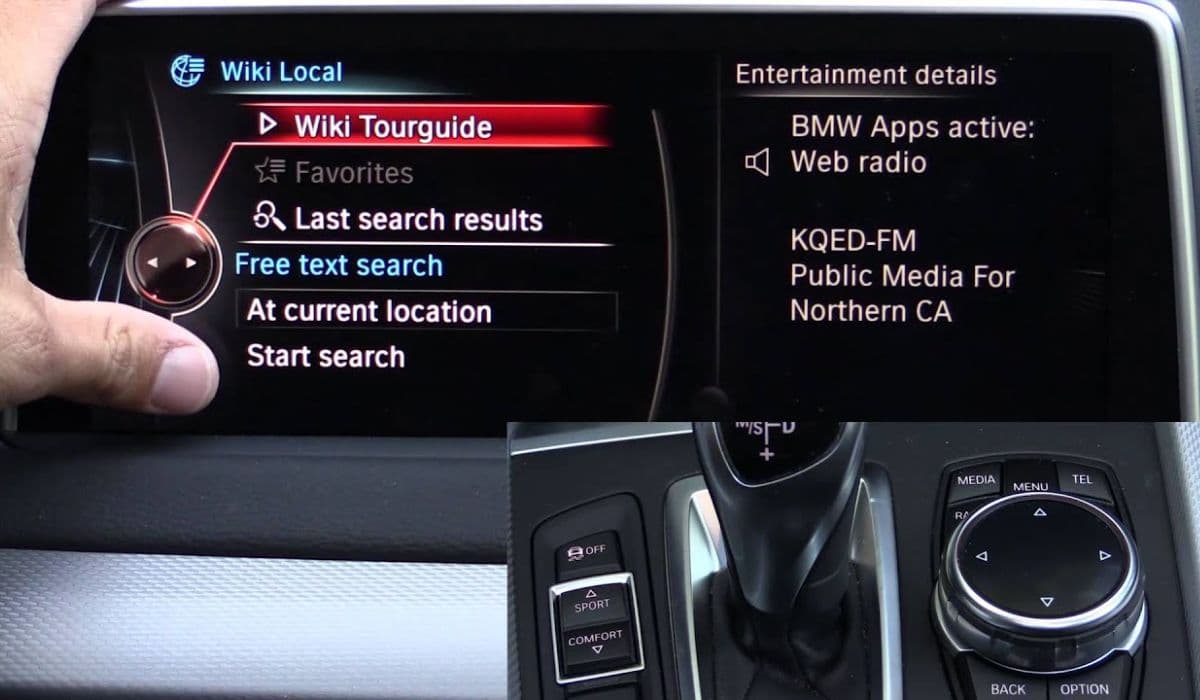
The curved display in modern BMW vehicles represents a pinnacle of automotive interface design, seamlessly blending the instrument cluster and central infotainment screen into one elegant, driver-oriented panel. This expansive, high-resolution setup enhances visibility and interaction, allowing quick access to navigation, media, vehicle settings, and advanced driver assistance features. However, like any sophisticated digital system, it can occasionally experience glitches that disrupt the driving experience. These issues range from minor annoyances to more persistent problems, but many can be resolved through straightforward troubleshooting steps.
Understanding Common Curved Display Glitches
Owners of BMW models equipped with the curved display often report similar symptoms when glitches occur. Recognizing these early can help determine the best course of action.
Flickering or intermittent dimming, where the screen flashes or adjusts brightness unexpectedly.
Freezing or lagging, making menus unresponsive or slow to load.
Partial blackouts, such as one side of the curved panel going dark while the other functions normally.
Ghost touches or erratic inputs, where the screen registers phantom selections.
Stuck boot screens, displaying only the BMW logo without progressing to the full interface.
Overlaid camera views or distorted graphics that persist abnormally.
These glitches typically stem from temporary software hiccups rather than permanent hardware failure, especially in systems running the latest iDrive versions.
Primary Causes Behind These Issues
Several factors contribute to curved display malfunctions, many of which are interrelated.
Software-related problems are the most frequent culprits. Minor bugs in the operating system can cause temporary overloads, leading to freezes or flickering. Over time, accumulated cache or conflicting processes from connected apps exacerbate this.
Environmental influences play a role too. Extreme temperatures, whether scorching heat or freezing cold, can affect electronic components, triggering protective modes or instability.
Power fluctuations, such as those following a low battery state or recent electrical work, often disrupt the system's stable operation.
Overloaded connectivity, like multiple Bluetooth devices paired simultaneously or heavy use of wireless features, can strain the processor, resulting in lag or unresponsiveness.
Fortunately, most causes are non-destructive and reversible without specialized tools.
Quick and Effective Soft Reset Technique
The simplest and most effective first step for resolving curved display glitches is a soft reset. This restarts the infotainment system without erasing personal settings, paired devices, or navigation data.
To perform it:
Ensure the vehicle is safely parked or stationary.
Locate the volume knob or power button on the center console.
Press and hold it for 20-30 seconds until the screen goes black.
Wait as the BMW logo appears and the system reboots fully.
This process clears temporary memory issues and often eliminates flickering, freezing, or stuck screens immediately. For stubborn glitches, repeat the hold until the system cycles through multiple reboots—sometimes up to three times—for a deeper refresh.
Many drivers find this resolves over 80% of common issues on the spot, restoring smooth operation.
Advanced Reset Options for Persistent Problems
If a standard soft reset doesn't fully resolve the glitch, try these escalated approaches.
Turn off the vehicle completely, lock it, and leave it undisturbed for 15-30 minutes. This allows any residual power to drain and forces a complete system refresh upon restart.
For partial display failures, gently tap the affected area of the screen, as some models have touch-to-wake functionality that can jolt a dormant section back to life.
Disconnect and reconnect any active smartphone integrations, like wireless Apple CarPlay or Android Auto, to rule out external interference.
These methods address deeper temporary locks or communication errors within the curved panel's dual sections.
Keeping the System Updated
Outdated software is a leading trigger for recurring glitches in the curved display.
Regular updates patch known bugs, optimize performance, and enhance stability. Check for available updates periodically through the vehicle's connected services menu.
Navigate to the settings section.
Select system or software update options.
Allow over-the-air downloads when connected to a stable network.
Proactive updates prevent many flickering or freezing episodes, ensuring the interface runs at peak efficiency with the latest enhancements.
Preventive Measures to Minimize Future Glitches
Avoiding glitches altogether involves mindful habits that support the curved display's longevity.
Limit simultaneous Bluetooth connections to essential devices only.
Avoid extreme temperature exposure by parking in shaded or covered areas when possible.
Restart the system occasionally during long ownership periods to clear built-up cache.
Use certified accessories and avoid unofficial adapters that could introduce instability.
These practices reduce strain on the system, keeping the immersive curved interface responsive and reliable.
When to Seek Professional Assistance
While most curved display glitches are user-resolvable, certain signs indicate a need for expert intervention.
Persistent issues after multiple resets, complete non-responsiveness across both panel sections, or visible distortions like wavy lines suggest potential hardware concerns. In such cases, diagnostic tools at an authorized service center can pinpoint deeper problems, ensuring precise resolution.
By starting with basic troubleshooting and progressing methodically, drivers can often restore their BMW's stunning curved display to flawless performance, maintaining the premium experience these vehicles are known for.
More from BMW
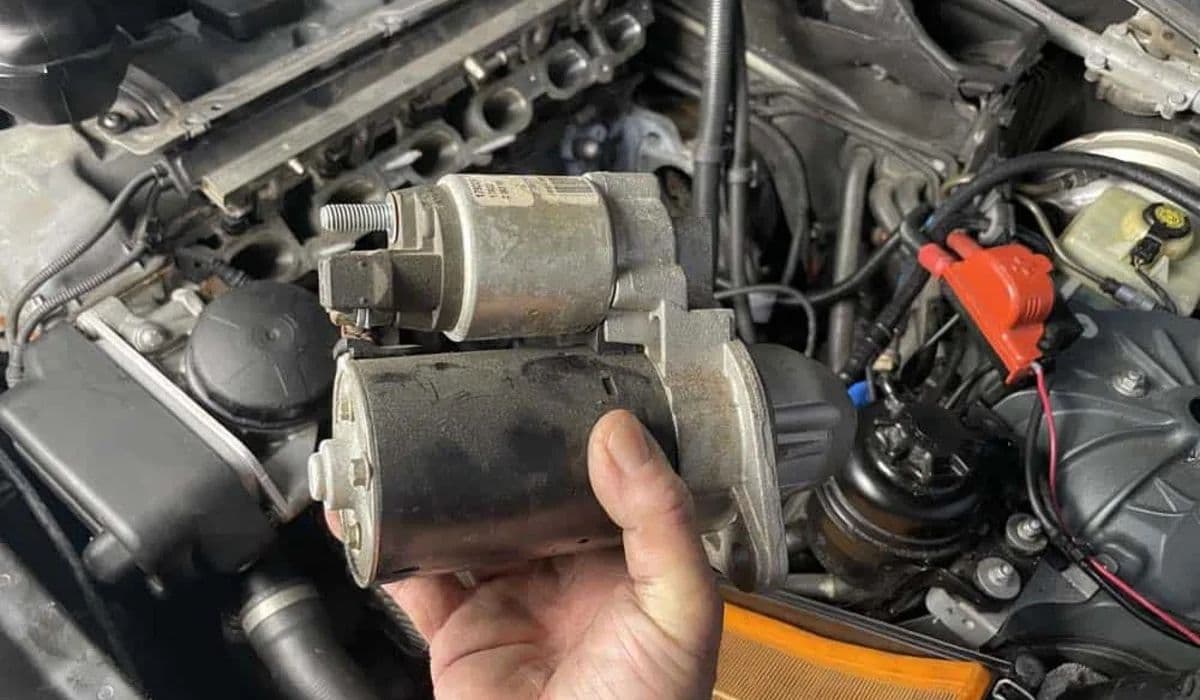
BMW: How to replace starter motor (fire risk recall)
20.12.2025 09:41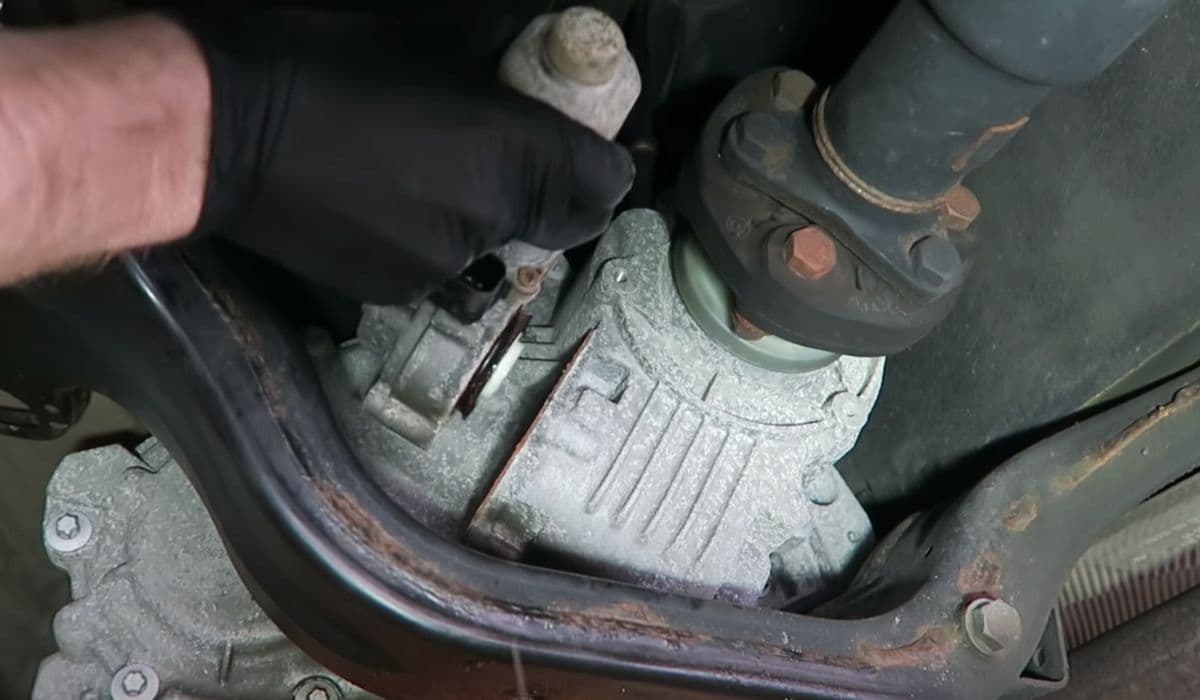
How to fix transfer case failure (BMW X5 common 9K repair)
20.12.2025 09:38
How to replace brittle plastic radiator sensor BMW
20.12.2025 09:10
How to fix dash delamination from weak glue BMW
20.12.2025 09:09
How to fix coil whine in drivetrain (BMW new models)
20.12.2025 06:41