How to fix boombox external speaker not working Tesla
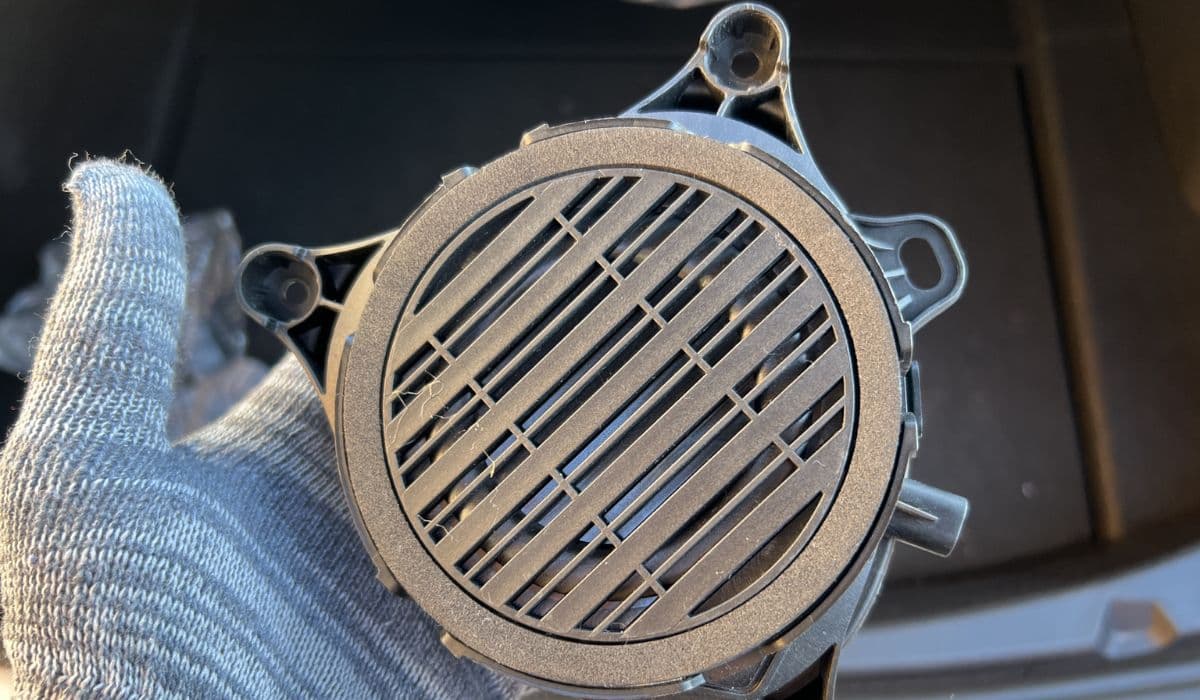
Tesla's Boombox feature transforms the vehicle's Pedestrian Warning System (PWS) speaker into a fun external audio outlet, allowing owners to play custom sounds, media, or even use a megaphone while parked. However, when the external speaker fails to produce sound—whether for Boombox, custom horn tones, lock chimes, or the standard low-speed pedestrian alert— it can be frustrating. This issue often stems from software glitches, configuration errors, or simple oversights rather than hardware failure. Below, we explore detailed troubleshooting steps to restore functionality and get your Tesla sounding off again.
Understanding the Boombox and External Speaker System
The external speaker in Tesla vehicles serves a dual purpose: it emits a mandatory pedestrian warning sound at low speeds to alert those nearby, and it powers the entertaining Boombox mode. This speaker is typically located under the front bumper or in the underbody area.
Not all Teslas have this speaker; it's standard on newer models but absent or disabled in some older ones.
Boombox only activates when the vehicle is in Park, with options to play current media, preset effects, or custom uploads.
Related features like custom horn sounds (while parked) or megaphone also rely on this same speaker.
If no sound emerges externally but internal speakers work fine, the problem is likely isolated to the PWS integration. Common symptoms include silent pedestrian warnings, no output during Boombox preview, or absent lock/unlock chimes.
Initial Checks Before Troubleshooting
Start with the basics to rule out simple causes.
Confirm your Tesla is equipped with the PWS speaker: Shift into Reverse with windows down—if you hear a futuristic whirring or humming, the hardware is present and functional.
Ensure the vehicle is in Park for Boombox testing, as external playback is restricted otherwise for safety reasons.
Verify volume levels: The media volume must be turned up, and during Boombox mode, an additional external volume control appears.
Check for any on-screen alerts related to audio systems or horns, which might indicate a detected fault.
These quick verifications can resolve many reported cases without deeper intervention.
Software Reboots and Updates
Many external speaker issues trace back to temporary software hiccups, especially after updates or feature activations.
Perform a soft reboot: Hold both scroll wheels on the steering yoke or wheel until the screen resets. This often reactivates the speaker recognition.
Try a full power cycle: Scroll to Controls > Safety > Power Off, wait two minutes without touching anything, then press the brake pedal to restart.
Ensure your software is current: Connect to Wi-Fi and check for updates, as patches frequently address audio-related bugs.
Owners have reported that a simple reboot restores pedestrian warnings, Boombox playback, and custom sounds after they suddenly stop working.
Testing Boombox Functionality Step by Step
Access Boombox via the Toybox in the entertainment menu to diagnose precisely.
Select a preset sound and hit Preview—listen externally for output.
Try Play Current Media while streaming audio internally; it should route to the external speaker.
Experiment with megaphone mode or horn customization to isolate if the issue affects all external audio.
If previews play internally only, the system may not recognize the speaker. Rebooting at this stage often fixes it. For persistent silence:
Exit and re-enter Boombox mode multiple times.
Toggle between options like Emission Testing mode, which can sometimes jolt the speaker back to life.
Custom Sounds and USB Troubleshooting
If using uploaded audio files, formatting errors are a frequent culprit.
Use a dedicated USB drive formatted to exFAT or FAT32.
Create a root folder named exactly "Boombox" (case-sensitive).
Place MP3 files inside without spaces or special characters in filenames.
Insert into the glovebox USB port for best recognition.
Avoid sharing the drive with dashcam footage without proper partitioning, as conflicts can prevent detection. Short, high-quality clips work best—test with one file first.
When to Seek Professional Assistance
If basic steps fail, hardware or configuration issues may be at play.
Schedule a mobile service appointment via the Tesla app under Audio or Software categories.
Technicians can remotely diagnose or inspect connections, often resolving loose wiring or enabling the feature if it's present but inactive.
In rare cases, the speaker itself may need replacement, though this is uncommon.
Mobile service has fixed many cases by tightening connections or recalibrating the system on-site.
Restoring your Tesla's external speaker brings back both safety alerts and playful features, enhancing the ownership experience. With these targeted steps, most owners resolve the issue independently, keeping the vehicle quietly efficient when needed—and boldly audible when desired.
More from Tesla
How to fix FSD visualization lag after Tesla 2025.14 update
16.12.2025 07:02
How to replace Tesla Model 3/Y rear bumper clips (easy DIY)
16.12.2025 05:46
How to fix phantom drain overnight Tesla
16.12.2025 04:50
How to replace octopus coolant leak (Tesla Model 3 2017–2020)
16.12.2025 03:21
How to replace torn rear seat bolsters Tesla
16.12.2025 03:09