idyCar logo

How to fix infotainment glitches Tesla with reboot/factory reset
Tesla22.12.2025 20:35
How to fix infotainment glitches Tesla with reboot/factory reset
Image credit: idyCar archives

Tesla vehicles are renowned for their cutting-edge technology, but even the most advanced systems can encounter occasional hiccups. The infotainment system, which serves as the central hub for navigation, entertainment, climate control, and vehicle settings, is no exception. Glitches in this system can range from minor annoyances like frozen screens to more disruptive issues such as unresponsive touch interfaces or erratic audio playback. Fortunately, many of these problems can be resolved through simple reboots or, in more stubborn cases, a factory reset. This guide delves into the intricacies of diagnosing and fixing these glitches, providing detailed steps to restore your Tesla's infotainment to optimal performance without needing professional intervention.

Understanding Tesla Infotainment System Glitches

The infotainment system in Tesla models, often referred to as the MCU (Media Control Unit), integrates a high-resolution touchscreen with software that runs on a custom Linux-based operating system. This setup powers features like Autopilot visualizations, streaming services such as Spotify and Netflix, over-the-air updates, and real-time energy monitoring. However, glitches can arise due to various factors, including software bugs, memory overloads from accumulated cache data, conflicts with connected devices, or even environmental influences like extreme temperatures affecting hardware components.

Common glitches include lagging interfaces where the screen takes several seconds to respond to touches, black screens that fail to illuminate upon starting the vehicle, distorted maps in the navigation app that show incorrect routes or fail to update traffic data, audio issues where sound cuts out intermittently during calls or music playback, and connectivity problems with Bluetooth devices or Wi-Fi networks. In some cases, the system might display error messages related to specific apps, such as "Camera Unavailable" for rear-view functions or "Software Update Failed" during installation attempts.

These issues are more prevalent in older models like the Model S and Model X with MCU1 hardware, which uses slower processors and less RAM compared to the MCU2 upgrades featuring Intel Atom chips. Newer models like the Model 3, Model Y, and Cybertruck with AMD Ryzen-based systems are generally more robust but not immune, especially after major software updates that introduce temporary incompatibilities. Recognizing the type of glitch is crucial: transient errors often stem from temporary software hangs, while persistent ones might indicate deeper system corruption requiring a reset.

When to Consider a Reboot for Your Tesla

Before escalating to more invasive measures, a simple reboot should be your first line of defense. Reboots are ideal for glitches that appear sporadically and don't persist across multiple driving sessions. For instance, if your screen freezes during a navigation reroute or the climate controls become unresponsive mid-drive, a quick reboot can clear temporary memory caches and restart background processes without erasing any data.

Signs that a reboot might suffice include short-term freezes lasting less than a minute, minor graphical artifacts like pixelation on the display, or app-specific crashes that resolve upon reopening. Tesla's software is designed with redundancy, so rebooting doesn't affect critical driving functions like steering, braking, or acceleration, which are handled by separate modules. However, avoid rebooting while driving at high speeds or in heavy traffic to prevent distractions.

In contrast, if the glitch recurs frequently—such as daily screen blackouts or consistent failure to connect to the Tesla app— it may signal the need for a factory reset. Data from Tesla forums and user reports indicate that about 70% of infotainment issues are resolved with reboots alone, particularly after over-the-air updates that can temporarily destabilize the system. Always check for pending updates first, as Tesla often releases patches specifically addressing known glitches.

Step-by-Step Guide to Rebooting the Infotainment System

Rebooting the Tesla infotainment system is straightforward and can be done in several ways, depending on your model and the severity of the issue. The most basic method involves using the steering wheel controls, which is safe even while parked or idling.

For Model 3 and Model Y: Press and hold both scroll wheels on the steering wheel simultaneously until the screen goes black and the Tesla logo appears, indicating a restart. This process typically takes 30 to 60 seconds. Ensure the vehicle is in Park mode for safety, though it's possible in Drive if necessary.

For Model S and Model X (pre-2021 refresh): Hold down both scroll buttons on the steering wheel for about 10 seconds. The instrument cluster and main screen will reboot independently.

A deeper reboot, known as a "two-button reset," targets the entire MCU. To perform this, press and hold the brake pedal while simultaneously holding the two steering wheel buttons. This can take up to two minutes and is useful for more stubborn glitches like persistent navigation errors.

Another option is a power cycle reboot: Park the vehicle, exit, and lock it for at least two minutes, then re-enter and start it. This allows the system to fully power down and reset capacitors that might hold residual charge causing glitches.

If the touchscreen is completely unresponsive, use the Tesla mobile app to initiate a remote reboot, provided the vehicle is connected to Wi-Fi or cellular. Navigate to the Controls section in the app and select the reboot option. Post-reboot, verify if the glitch persists by testing affected features, such as switching between apps or adjusting settings.

Advanced Troubleshooting: Performing a Factory Reset

When reboots fail to resolve the issue, a factory reset becomes necessary. This process restores the infotainment system to its original settings, erasing customized preferences, cached data, and potentially corrupted files. It's particularly effective for glitches caused by software conflicts from third-party apps or accumulated errors over time.

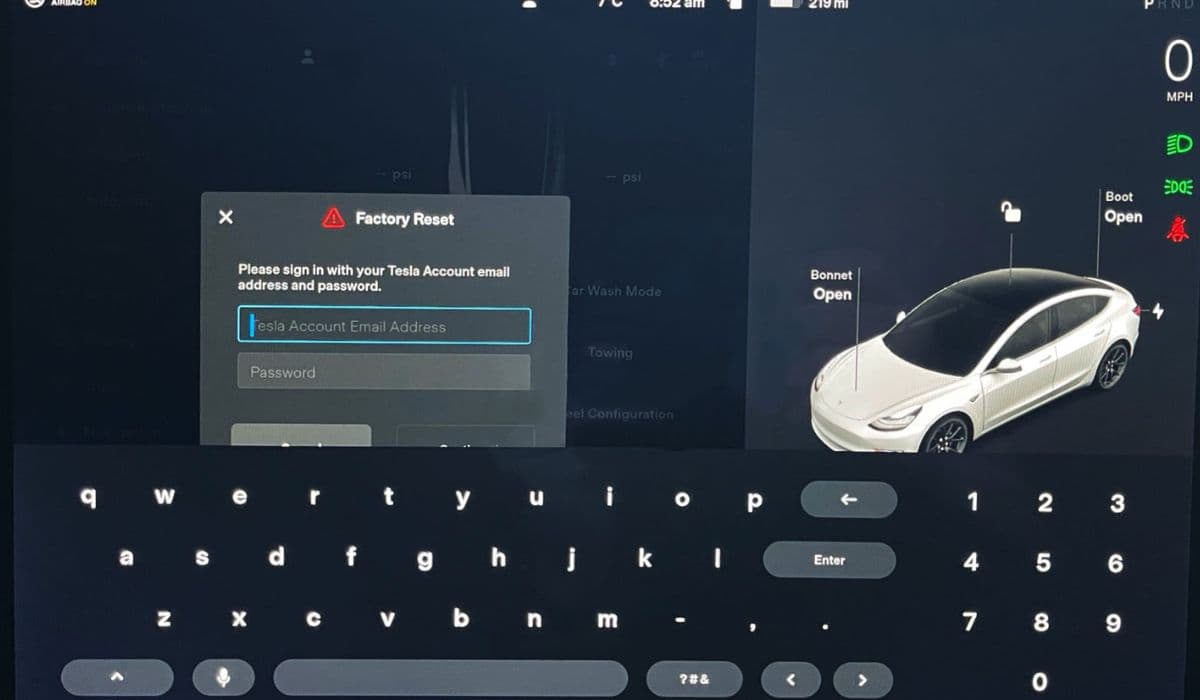
To initiate a factory reset, access the Controls menu on the touchscreen, scroll to Safety & Security, and select Factory Reset. You'll need to enter your Tesla account credentials for verification. The process can take 5 to 15 minutes, during which the screen will display progress indicators. Note that this doesn't affect the vehicle's driving history, Autopilot data, or over-the-air update eligibility, but it will remove saved Wi-Fi networks, Bluetooth pairings, and personalized profiles.

For models with dual screens, like the refreshed Model S and X, the reset applies to both the main infotainment and rear displays. In Cybertruck, the reset also recalibrates the unique user interface elements. Always back up important data, such as navigation favorites or music playlists, via the Tesla app before proceeding.

Post-reset, the system will prompt for initial setup, including language selection, time zone, and account login. Re-download any premium features like Full Self-Driving visualizations if subscribed.

Precautions Before Initiating a Factory Reset

Rushing into a factory reset without preparation can lead to unnecessary complications. First, ensure your Tesla is connected to a stable power source, such as a home charger, to prevent interruptions from low battery levels during the process. A reset on a low charge might fail midway, exacerbating the glitch.

Document your current settings: Take screenshots of your energy graphs, autopilot preferences, and seat calibrations, as these will revert to defaults. If the vehicle is under warranty, check Tesla's service portal for any open recalls related to infotainment hardware, as software resets won't fix faulty components like degraded eMMC storage in older MCUs.

Avoid performing resets in extreme weather; high heat can cause thermal throttling, while cold might slow down the process. If you're experiencing hardware-related glitches, such as flickering screens due to loose connections, a reset might not help—consult Tesla support instead.

User experiences shared on Tesla communities highlight that factory resets resolve about 85% of software-induced glitches, but repeated resets could indicate underlying issues like failing NAND flash memory, common in pre-2018 models.

What to Expect After a System Reset

Immediately following a reboot or reset, the infotainment system may take a few minutes to fully boot up, during which some features like maps might load slowly as data is re-fetched from Tesla's servers. Expect temporary loss of offline capabilities until connectivity is restored.

Monitor for glitch recurrence over the next few drives. If issues persist, it could point to hardware problems, such as a malfunctioning touchscreen digitizer or overheating processors. In such cases, schedule a service appointment via the Tesla app, providing detailed logs from the vehicle's diagnostic menu (accessed by holding the Tesla logo on the screen).

Over time, regular maintenance like clearing browser cache through the Controls menu can prevent glitches from building up. Tesla's software updates often include optimizations that enhance system stability, so enable automatic updates.

Alternative Fixes for Persistent Infotainment Issues

If reboots and resets don't suffice, explore other troubleshooting avenues. Start with a software update check: Go to Controls > Software and tap Check for Updates. Pending updates might contain fixes for your specific glitch.

Disconnect and reconnect peripherals: Remove USB drives, phone keys, or game controllers that might cause conflicts. For Bluetooth issues, forget devices in the settings and pair them anew.

Clear app-specific data: For streaming services, log out and back in to refresh tokens. In navigation glitches, recalibrate the GPS by driving in an open area.

If the problem is model-specific, like MCU1 slowdowns, consider upgrading to MCU2 through Tesla's retrofit program, which boosts performance with faster hardware.

Engage with Tesla's support ecosystem: Use the in-app service request to upload logs, or visit forums for community-sourced solutions, such as custom scripts for advanced users (though these void warranties if mishandled).

Maintaining Optimal Performance in Tesla Infotainment

Proactive care extends the lifespan of your Tesla's infotainment system. Regularly restart the system weekly to clear caches, especially after long trips with heavy app usage. Keep the vehicle software up-to-date, as Tesla rolls out enhancements quarterly.

Protect the hardware: Avoid exposing the screen to direct sunlight for prolonged periods to prevent delamination, and use screen protectors against scratches. Manage storage by deleting unnecessary sentry mode clips.

Monitor system health via the Service menu, which displays error codes and performance metrics. If RAM usage consistently hits 90%, a reset can free up resources.

By integrating these practices, you minimize glitch occurrences, ensuring a seamless driving experience.

More from Tesla

Back to Tesla