idyCar logo

How to fix vampire drain with software tweaks Tesla
Tesla22.12.2025 10:36
How to fix vampire drain with software tweaks Tesla
Image credit: idyCar archives

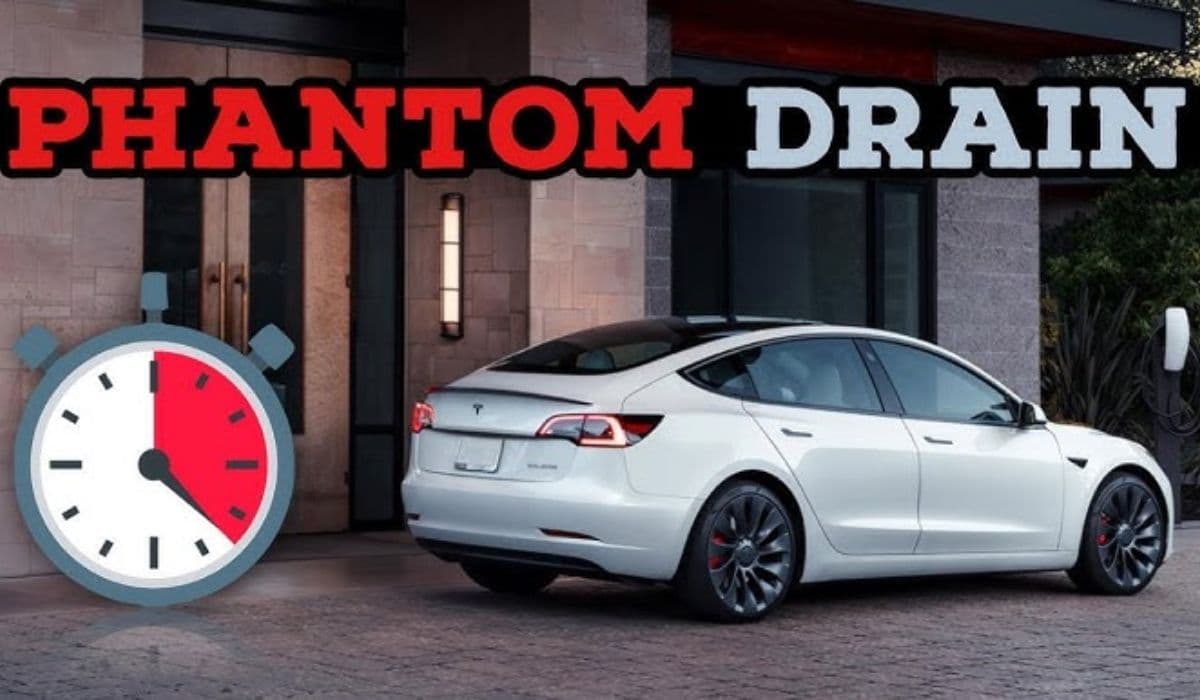
Vampire drain, also known as phantom drain, refers to the gradual loss of battery charge in Tesla vehicles when they're parked and not in use. This phenomenon can frustrate owners who notice their range dropping unexpectedly overnight or during extended periods of inactivity. While some drain is inevitable due to background processes like battery management and connectivity features, excessive vampire drain can often be mitigated through targeted software adjustments. In this guide, we'll explore practical software tweaks that help minimize this issue, drawing on Tesla's built-in settings and updates to optimize energy efficiency without compromising functionality.

Understanding Vampire Drain in Tesla Vehicles

Vampire drain occurs because Tesla cars maintain constant communication with various systems even when powered off. Features like remote monitoring via the Tesla app, over-the-air software updates, and preconditioning preparations contribute to this energy consumption. On average, a Tesla might lose 1-3% of its battery per day in standby mode, but factors such as extreme temperatures, enabled security options, or outdated software can exacerbate this to 5% or more.

The root causes include the vehicle's always-on computer systems, which handle tasks like GPS tracking, alarm monitoring, and data syncing. For instance, the infotainment system and autopilot hardware remain partially active to ensure quick wake-up times. Environmental conditions play a role too; in cold weather, the battery management system (BMS) actively warms the pack to prevent degradation, while hot climates trigger cooling mechanisms. Additionally, third-party apps or integrations that poll the car's API frequently can accelerate drain.

By focusing on software tweaks, owners can reduce these losses significantly. Tesla's ecosystem is designed with user-configurable options that allow fine-tuning of power-hungry features. Regular software updates from Tesla often include optimizations specifically aimed at improving standby efficiency, so keeping your vehicle current is a foundational step.

Optimizing Sentry Mode for Reduced Energy Use

Sentry Mode is a popular security feature that uses the car's cameras to monitor surroundings and record potential threats. However, it can be a major contributor to vampire drain, consuming up to 1 kWh per hour in active states due to constant video processing and storage.

To tweak this via software, access the Controls menu on your Tesla's touchscreen and navigate to Safety & Security. Here, you can disable Sentry Mode entirely when the car is parked in a secure location like a garage. For partial use, enable it only at specific locations by using the Exclude Home, Work, or Favorites options. This geofencing approach ensures Sentry activates solely in unfamiliar or high-risk areas, slashing unnecessary drain.

Further refinement involves adjusting the sensitivity settings. Lower the alert threshold to reduce false positives from minor movements, which trigger recording and notifications. In software version 2023.44 and later, Tesla introduced an energy-efficient mode for Sentry that prioritizes audio detection over full video, potentially halving power draw. Always monitor your battery stats in the app after changes to verify improvements—aim for under 0.5% loss per hour when parked.

Adjusting Cabin Overheat Protection Settings

Cabin Overheat Protection (COP) safeguards the interior from excessive heat, activating fans or air conditioning when temperatures exceed 105°F (40°C). While essential for pet safety and interior preservation, it can lead to vampire drain in sunny climates by running HVAC systems intermittently.

Through the Tesla app or touchscreen under Controls > Safety, you can customize COP. Options include No A/C (which uses only ventilation fans), Keep (maintains a set temperature), or Off. Selecting No A/C minimizes energy use while still circulating air to prevent heat buildup. For vehicles with software 2024.2 or newer, there's an enhanced algorithm that predicts heat rise based on weather data pulled from the car's connectivity, activating only when necessary.

Pair this with scheduling preconditioning wisely. Instead of leaving it on auto, set specific times via the app to cool or heat the cabin just before departure. This avoids prolonged background operation. In regions with variable weather, integrating COP with the Energy app's consumption graphs helps identify patterns— for example, if drain spikes during midday, toggling it off during those hours could save 2-4 miles of range daily.

Enabling Energy Saving Modes and Sleep Settings

Tesla offers several built-in energy conservation modes that directly address vampire drain. The primary one is Energy Saving, found in the Display settings on the touchscreen. When activated, it dims the screen faster and reduces background processes, potentially cutting standby drain by 20-30%.

For deeper optimization, delve into the Software menu and enable Deep Sleep mode, available in updates post-2022. This puts non-essential systems into a low-power state after a period of inactivity, such as 15 minutes. However, it may delay remote app access slightly, so balance this with your usage habits. If you frequently check the app, set a longer wake-up interval.

Another tweak involves the Standby Mode preferences. In the app's Vehicle settings, disable Always Connected if you don't need instant remote access. This feature keeps the car online via LTE or Wi-Fi, but turning it off allows the vehicle to enter a true sleep state, conserving battery. For Model 3 and Y owners, software 2023.38 introduced a refined BMS that calibrates sleep cycles based on driving patterns, automatically adjusting for minimal drain.

Managing App and Connectivity Features

The Tesla mobile app is a gateway to remote control but can inadvertently increase vampire drain through frequent data polling. To optimize, go to the app's settings and reduce the refresh rate for stats like battery level and location. Set it to manual refresh instead of automatic, especially if the car is parked long-term.

Disable unnecessary notifications, such as those for charging completion or software update availability, which wake the car periodically. For integrations with smart home systems like Home Assistant or third-party apps, limit API calls to once per hour via their respective configurations. Tesla's API documentation, accessible through developer accounts, suggests batching requests to avoid excessive wake-ups.

Wi-Fi connectivity is another area for tweaks. Connect your Tesla to a home Wi-Fi network for updates, but enable the Energy Saving preference to disconnect when asleep. In software 2024.14, Tesla added a feature to prioritize cellular data only for critical alerts, further reducing power use from constant network scanning.

Keeping Software Up to Date for Efficiency Gains

Tesla's over-the-air (OTA) updates frequently include battery optimization patches that address vampire drain at the firmware level. For example, version 2023.26 improved the handling of phantom loads by throttling background tasks more aggressively.

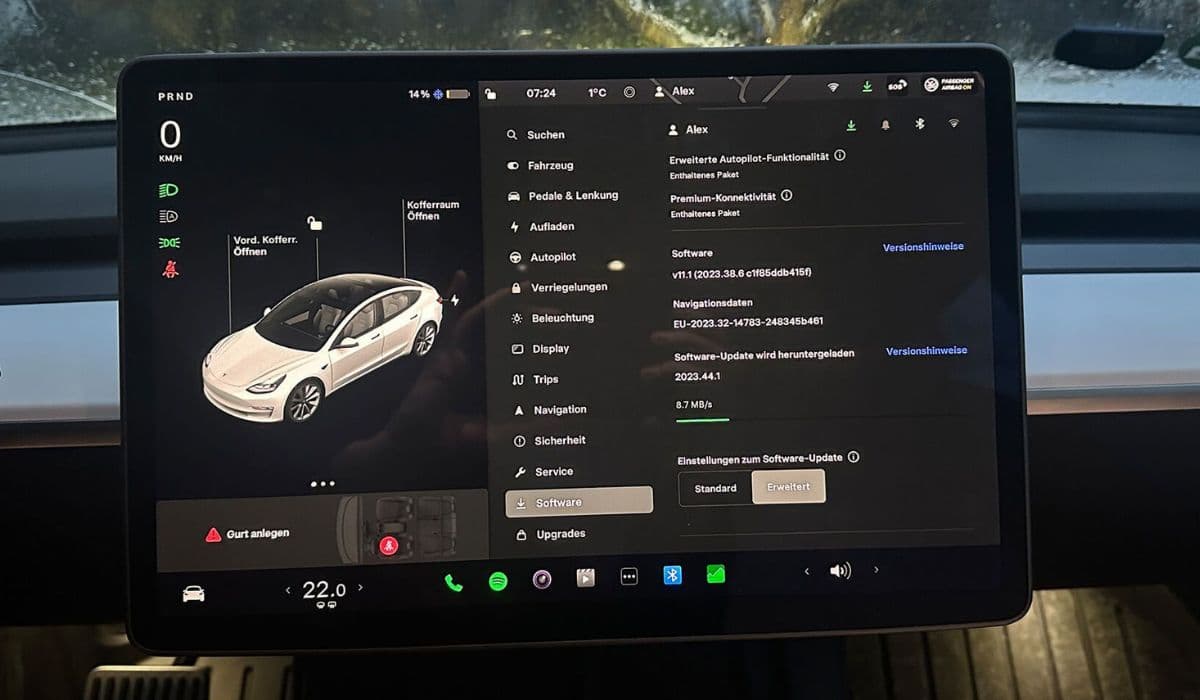
To ensure you're benefiting, check for updates regularly in the Software tab on the touchscreen. Schedule installations during off-peak hours or when plugged in to avoid drain during the process. Post-update, recalibrate your battery by charging to 100% and letting it sit, which helps the BMS accurately report capacity and reduce unnecessary maintenance cycles.

Historical updates like 2022.44 introduced better thermal management, preventing drain from inefficient heating/cooling loops. If you're on an older version, manually trigger checks via the app. Tesla's release notes often highlight energy fixes, so review them to apply relevant tweaks immediately.

Monitoring and Troubleshooting Battery Drain

Effective management requires ongoing vigilance. Use the Tesla app's Energy section to view detailed consumption graphs, breaking down drain by feature—Sentry, HVAC, or standby. Set custom alerts for abnormal losses, like over 1% per hour, to catch issues early.

If tweaks don't suffice, perform a soft reset via the touchscreen (hold both scroll wheels) to clear cached processes causing excess drain. For persistent problems, enable logging in the Service menu and share data with Tesla support for diagnostic insights. Common culprits include faulty 12V batteries or sensor glitches, but software often resolves 80% of cases.

Experiment with combinations: For instance, pairing Energy Saving with disabled COP in moderate climates can yield up to 50% drain reduction. Track changes over a week using the app's history to quantify savings, adjusting as needed based on your routine.

Advanced Tweaks for Power Users

For those comfortable with deeper customization, explore the hidden Developer Mode (accessible by tapping the car model in the Software menu multiple times). This unlocks granular controls like CPU throttling in standby, though it's unofficial and may void warranties if misused.

Integrate with Tesla's API for scripted automation—use tools like Tessie or TezLab apps to schedule sleep modes programmatically. These third-party solutions offer dashboards showing real-time drain metrics, helping pinpoint tweaks. In recent updates, Tesla enhanced API efficiency, reducing the energy cost of external queries.

Consider hardware-software synergies: While focusing on software, ensure tires are properly inflated and alignment is correct, as these indirectly affect efficiency calculations in the BMS, minimizing phantom adjustments.

By implementing these software-focused strategies, Tesla owners can significantly curb vampire drain, preserving range and extending battery life. Consistent application turns what seems like an inevitable annoyance into a manageable aspect of EV ownership.

More from Tesla

Back to Tesla