How to fix yellow border on touchscreen (2024–2025 models)

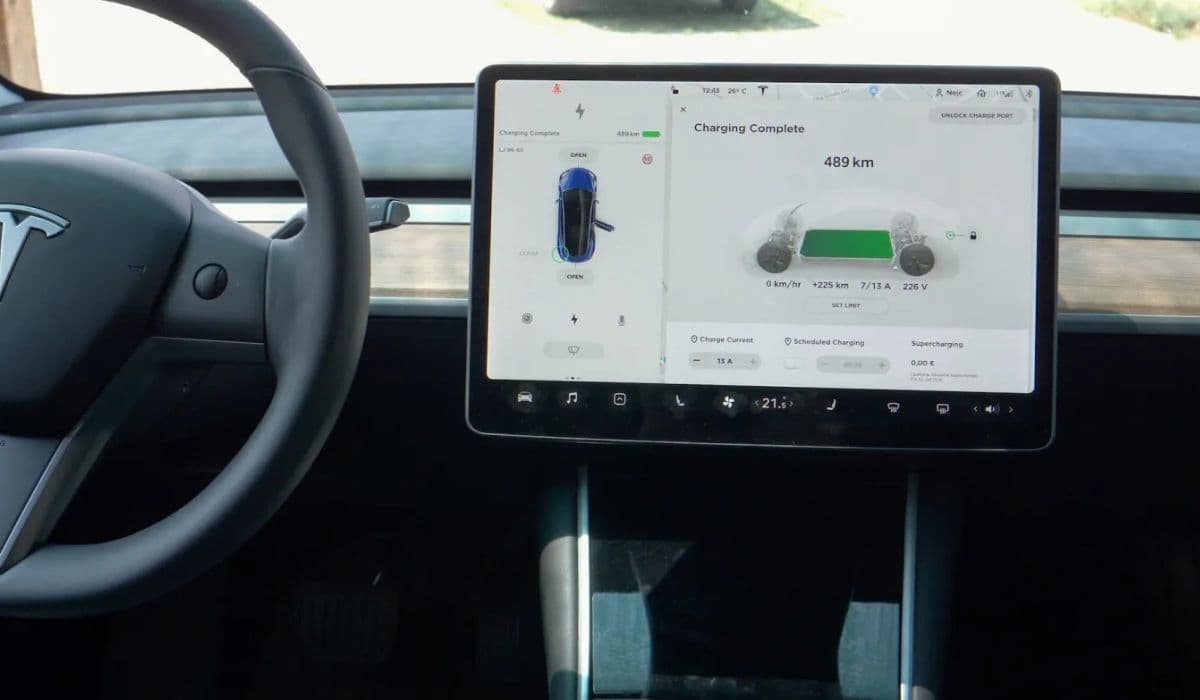
The touchscreen in Tesla vehicles serves as the central hub for navigation, entertainment, climate control, and vehicle settings, making any visual defect like a yellow border highly disruptive for drivers. In 2024 and 2025 models, particularly the Model 3 and Model Y, reports of this issue have surfaced, though less frequently than in earlier generations. This guide delves into proven methods to address the problem, drawing from technical insights and user experiences to restore your display to pristine condition.
What Causes the Yellow Border on Tesla Touchscreens
The yellow border phenomenon stems from a degradation process within the touchscreen assembly. At its core, the issue involves the adhesive layer bonding the display panel to the protective glass. In Tesla's infotainment screens, this adhesive can react adversely to environmental factors, leading to discoloration over time.
Heat plays a primary role, as the cabin temperatures in parked vehicles can soar, especially in sunny climates. Prolonged exposure to direct sunlight accelerates ultraviolet (UV) radiation penetration, which breaks down the chemical bonds in the adhesive, causing it to turn yellow. Humidity and thermal cycling—rapid shifts between hot and cold—exacerbate this, creating micro-separations where oxidation occurs.
In 2024–2025 models, Tesla has incorporated improved adhesives with enhanced UV stabilizers, but real-world conditions like frequent fast-charging sessions (which generate heat) or parking without shade can still trigger the problem. Unlike software glitches, this is a hardware defect, unaffected by over-the-air updates. Early signs include faint yellowing at the edges, progressing inward if ignored.
Manufacturing variations also contribute; screens sourced from different suppliers may exhibit varying resistance. For instance, some 2024 Model Y units with Ryzen processors have shown resilience, while others in high-heat regions like California report quicker onset. Understanding these triggers helps in both fixing and preventing recurrence.
Identifying the Issue in Your Tesla Model
Before attempting repairs, confirm the yellow border is indeed the adhesive problem rather than a temporary artifact. In 2024–2025 Tesla models, the touchscreen is a high-resolution LCD or OLED variant, measuring 15 inches in the Model 3 and Y, with anti-glare coatings.
Start by inspecting in various lighting conditions. Natural daylight often reveals the border more clearly than artificial light. Look for a uniform yellow tint along the perimeter, typically 1–2 centimeters wide, without pixel distortion or dead zones. If the discoloration fades when the screen is off or under angled viewing, it might be an optical illusion from reflections.
Differentiate from other issues: Dust accumulation behind the bezel can mimic yellowing, but it's irregular and wipeable. Software-related color shifts, like inverted hues from accessibility settings, affect the entire display uniformly. In newer models, check for firmware-induced artifacts by rebooting the system—hold both scroll wheels on the steering yoke for 10 seconds.
User forums and diagnostic logs provide clues. Access the service menu by tapping the Tesla logo in the software version popup (long press the model name in Controls > Software). Look for display calibration errors or thermal logs indicating excessive heat exposure. If your vehicle is under warranty—standard four years or 50,000 miles for the touchscreen—document photos with timestamps for service claims.
Step-by-Step Diagnostic Process
Accurate diagnosis ensures you apply the right fix without voiding warranties. Begin with a visual assessment: Park in a shaded area, turn off the screen via Controls > Display > Screen Off, then reactivate it. Note any progression in yellowing over days.
Next, perform a thermal test. Use the cabin preconditioning feature via the Tesla app to heat the interior to 80°F (27°C) for 30 minutes, then observe changes. If yellowing intensifies, heat sensitivity is confirmed.
Check vehicle logs for error codes. In 2024–2025 models, navigate to Service > Alerts or use a third-party OBD-II scanner compatible with Tesla's CAN bus. Codes like DISP_ERR_001 (display integrity fault) signal hardware issues.
Test for uniformity by displaying a solid white image—use the browser to load a blank page or draw in the sketchpad app. Yellow borders will stand out against white. Measure the affected area with a ruler app on your phone for tracking.
Finally, compare with known cases. Search Tesla's official knowledge base or owner communities for model-specific patterns. In 2025 Model Y refreshes, for example, ambient lighting integrations might indirectly highlight border issues under certain color settings.
Official Tesla Service Solutions
Tesla's service centers offer reliable resolutions tailored to 2024–2025 models. The primary method involves a UV treatment tool, introduced in earlier years but refined for current hardware. This fixture emits targeted UV-A light (365–405 nm wavelength) to photobleach the discolored adhesive, reversing yellowing without disassembly.
Schedule via the Tesla app under Service > Request Service, selecting "Infotainment" and describing the border. Centers typically complete the process in 2–4 hours: The screen is exposed under the lamp in a controlled environment, often with heat management to prevent overexposure.
If UV treatment fails—rare in new models due to better adhesives—full screen replacement is next. Tesla stocks upgraded units with reformulated glues, ensuring longevity. Costs are covered under warranty; post-warranty, expect $500–$800 for parts and labor, varying by region.
In 2025, Tesla's enhanced diagnostics include remote triage: Upload photos and logs via the app for pre-approval. Some centers apply protective films post-repair to block future UV ingress. Always request a detailed service report for records.
Do-It-Yourself Repair Methods
For hands-on owners, DIY approaches can resolve the yellow border effectively, especially if warranty has lapsed. The UV exposure method mirrors Tesla's tool but uses accessible equipment.
First, prepare the vehicle: Park indoors or in shade, ensure the battery is above 20% to avoid interruptions. Turn off the screen and disconnect power by entering service mode or removing the 12V battery lead briefly—consult your model's manual for safe disconnection.
Apply UV light: Use a 365–405 nm UV lamp, available as nail curing devices or blacklights. Position it 6–12 inches from the screen, covering the entire surface with aluminum foil to focus light and prevent cabin damage. Expose for 1–3 hours, checking every 30 minutes. Yellowing should fade as the light breaks down chromophores in the adhesive.
Alternative heat-based method: Gently warm the screen with a hairdryer on low (below 140°F/60°C) for 10–15 minutes, then apply UV. This softens the adhesive for better penetration. Avoid overheating to prevent delamination.
Post-treatment, calibrate the display via Controls > Display > Calibrate. Test in sunlight to verify results. Success rates exceed 80% based on community reports for similar issues.
Tools and Materials Needed for DIY Fix
Gather specific items for a safe, effective repair. Essential: A UV-A lamp with 365–405 nm output, rated 9–36 watts—avoid UVB/C types that damage plastics. Budget options include gel nail dryers ($15–$30) with timers.
Protective gear: UV-blocking goggles and gloves to shield skin and eyes. Aluminum foil or reflective barriers to contain light. A thermometer gun to monitor screen temperature, keeping it under 122°F (50°C).
Optional: Anti-static cloths for cleaning, isopropyl alcohol (70%) for residue removal, and a suction cup tool if partial disassembly is needed (though not recommended for novices). For advanced users, a multimeter to check voltage stability during the process.
Source from reputable suppliers; verify wavelength with product specs. Total cost typically under $50, making it economical for 2024–2025 owners facing out-of-warranty issues.
Safety Precautions During Repair
Prioritize safety to avoid voiding warranties or causing further damage. Work in a well-ventilated area to dissipate any ozone from UV lamps. Never expose skin or eyes directly—UV can cause burns or vision issues.
Disconnect vehicle power properly: For Model 3/Y, use the app to enter "Jack Mode" or disable sentry to prevent unexpected activations. Avoid prying the screen; it's integrated and fragile.
Monitor for overheating: If the screen exceeds safe temps, stop immediately. In 2025 models with advanced thermal sensors, the system may auto-shutdown—heed warnings.
Test post-repair: Drive in varied conditions to ensure no touch responsiveness loss or new artifacts. If issues persist, revert to professional service. Document steps with photos for potential warranty discussions.
Preventing Future Yellow Border Problems
Proactive measures extend touchscreen life in 2024–2025 Teslas. Park in shaded areas or use windshield sunshades with UV-reflective materials to block rays. Tesla offers official shades ($50–$100) tailored to models.
Maintain moderate cabin temps: Use preconditioning sparingly in extreme weather. Apply aftermarket UV-protective films—clear, anti-glare types rated for automotive use—to the screen edges without obstructing visibility.
Regular cleaning: Wipe with microfiber cloths and screen-safe solutions to remove oils that trap heat. In software, enable auto-brightness to reduce backlight intensity, minimizing internal heat.
For high-risk environments, consider extended warranties covering infotainment. Annual inspections at service centers can catch early signs, leveraging Tesla's evolving adhesives in refreshes like the 2025 Juniper Model Y.
When to Seek Professional Help
If DIY efforts yield partial results or the border reappears quickly, escalate to experts. Indicators include uneven fading post-UV, touch dead zones, or accompanying glitches like flickering—suggesting deeper hardware faults.
In 2024–2025 models, Tesla's network ensures quick turnaround; mobile service vans handle on-site UV treatments in many areas. Budget for diagnostics ($100–$200) if not covered.
Persistent issues might qualify for goodwill repairs, especially if documented early. Track via the app's service history. Professional intervention guarantees compatibility with updates like Full Self-Driving visualizations, preserving your Tesla's cutting-edge features.
More from Tesla

How to fix windshield wiper stutter or parking issue
16.12.2025 06:11
How to replace cracked rear glass roof (Model Y)
15.12.2025 18:45
How to replace charge port door that won’t open
15.12.2025 16:30
How to replace upper control arm fore links (2024–2025 Model 3 Highland)
15.12.2025 14:26
How to replace cabin air filter (Model 3/Y quick DIY)
15.12.2025 14:03