Tesla: How to fix yellow touchscreen border (MCU failure workaround)
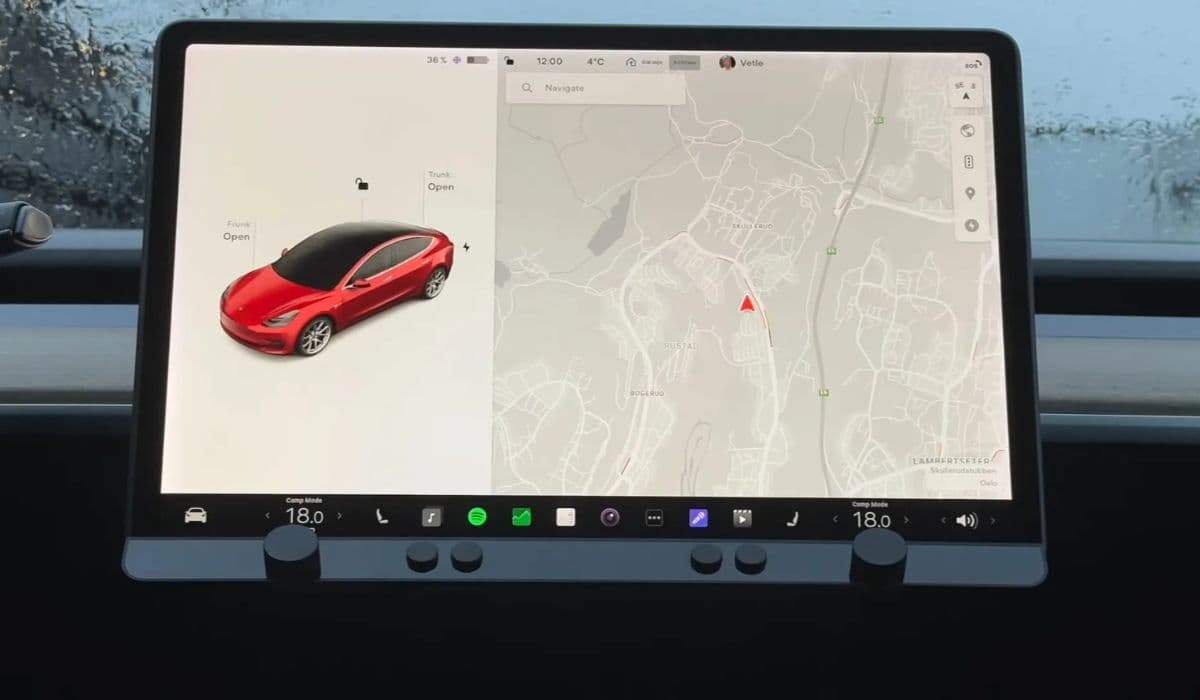
The large central touchscreen is one of the most iconic features of Tesla vehicles, serving as the hub for navigation, media, climate control, and countless other functions. However, many owners of older Model S and Model X vehicles have encountered a frustrating cosmetic issue: a yellow or brownish border appearing around the edges of the display. This discoloration can start subtly and gradually intensify, detracting from the otherwise sleek and modern interior.
While it might seem alarming at first, this problem is well-documented within the Tesla community and stems from a specific manufacturing quirk rather than any damage caused by the owner.
Understanding the Yellow Border Issue
The yellow border typically affects vehicles equipped with the first-generation Media Control Unit (MCU1), particularly those produced in certain periods. The root cause lies in the adhesive layer used to bond the touchscreen glass to the underlying display panel. During manufacturing, this optically clear adhesive was not fully cured under UV light, leaving it vulnerable over time.
As the vehicle experiences normal heat cycles—from the sun beating down on the dashboard or even the screen's own operation—the uncured adhesive begins to degrade and yellow. This creates a visible frame-like band, often most noticeable against lighter backgrounds like the map view or white menus.
The border usually starts thin, around a few millimeters wide, and can widen or darken gradually.
It appears uniformly around all edges, distinguishing it from other issues like delamination bubbles or pixel failures.
Importantly, this is purely cosmetic and does not impact touchscreen responsiveness, brightness, or overall functionality.
Many owners only notice it after parking in direct sunlight or when comparing their screen to newer models. The good news is that the issue can be addressed effectively without replacing the entire MCU.
Why Replacements Were Common But Not Ideal
In the early days of this problem surfacing, Tesla's primary solution was to replace the touchscreen assembly. Service centers would swap out the display, restoring a pristine appearance. However, since the replacement parts often came from the same production batches with the same adhesive formula, the yellow border frequently returned after some time.
This led to repeated service visits for affected owners, highlighting the need for a better approach. Tesla engineers investigated and identified the incomplete curing as the culprit, paving the way for a more targeted fix that addresses the adhesive directly.
The UV Curing Method: A Reliable Workaround
The most effective and widely used solution involves exposing the screen to controlled UV light, which completes the curing process of the adhesive. This reverses the yellowing by stabilizing the material at a molecular level.
Tesla developed a specialized fixture that fits precisely over the touchscreen, delivering high-intensity UV light evenly across the surface. The process typically takes a few hours, during which the vehicle's climate system keeps the interior cool to prevent any heat buildup.
Owners who have undergone this treatment report dramatic improvements, with the border vanishing completely and the screen looking brand new.
The procedure is non-invasive—no parts are removed or replaced.
It preserves all your settings, saved locations, and preferences.
Results are often immediate, visible as soon as the fixture is removed.
While some debate whether the fix is permanent, many vehicles treated this way have remained clear for extended periods, especially if parked in shaded areas or garages to minimize extreme heat exposure.
DIY UV Treatment: An At-Home Option for Enthusiasts
For owners comfortable with a hands-on approach or those far from a service center, a do-it-yourself UV curing method has gained popularity in Tesla forums. This workaround uses affordable UV lamps commonly available for other purposes, like nail gel curing.
The principle is the same: prolonged, even exposure to UV light finishes curing the adhesive.
Here’s how enthusiasts typically perform it:
Acquire a UV lamp with sufficient power and coverage area.
Park the vehicle in a safe, indoor space to avoid interruptions.
Position the lamp close to the screen, focusing on one section at a time if the device doesn't cover the full display.
Run sessions over multiple hours or nights, accumulating total exposure time.
Monitor progress periodically—the yellowing fades visibly as the adhesive cures.
Precautions are key:
Ensure good ventilation, as some lamps generate ozone.
Avoid direct eye exposure to UV rays.
Keep the car powered on if needed to prevent the screen from sleeping.
Test on small areas first to observe changes.
Many who have tried this report success comparable to professional treatment, with the border disappearing entirely after sufficient exposure. It's a low-risk option that empowers owners to resolve the issue on their own schedule.
Preventing Recurrence and Long-Term Care
Although the UV method effectively clears the existing yellowing, minimizing future heat stress can help prolong the results. The adhesive, once fully cured, is far more resistant, but extreme conditions can still influence longevity.
Practical tips include:
Parking in shaded spots or using a windshield sunshade during hot days.
Avoiding prolonged direct sunlight exposure when possible.
Keeping the cabin ventilated or preconditioned via the app.
Regularly cleaning the screen gently to maintain clarity.
Newer Tesla models and upgraded MCUs use improved display assemblies that eliminate this vulnerability altogether, but for legacy vehicles, the curing approach remains the smartest path forward.
This yellow border phenomenon highlights both the challenges of innovative large-scale touchscreens and the resourceful solutions that emerge from Tesla's engineering and owner community collaboration. With the right workaround, your touchscreen can regain its original crisp, border-free appearance and continue serving as the commanding centerpiece of your drive.
More from Tesla
How to fix HVAC blend door actuator clicking noise Tesla
16.12.2025 13:16
How to fix FSD visualization lag after Tesla 2025.14 update
16.12.2025 07:02
How to fix phantom drain overnight Tesla
16.12.2025 04:50
How to replace octopus coolant leak (Tesla Model 3 2017–2020)
16.12.2025 03:21
How to replace torn rear seat bolsters Tesla
16.12.2025 03:09